Get full forum access in 30 seconds

Register free to post replies, bookmark threads and follow updates.

Wrench

Member
Posts: 9
I’m planning a clean Windows install and want to avoid rebuilding every app’s settings from scratch. Browser sync and built-in export options cover some things, but other programs keep preferences or profiles in less obvious places. What’s your usual method for backing up and restoring app settings? Do you rely on each program’s export feature, copy specific folders, or use a backup tool? Tips on what not to restore would be helpful too.
 
I usually use each app’s built-in export or sync first, then back up important config folders from AppData and Documents. I’d avoid restoring entire AppData blindly, since old caches, drivers, or broken settings can bring problems back after a clean install.
 
Windows 10 or Windows 11 Pro?

If I were in your shoes, I would first back up all my existing drivers. I will explain later why this is important.

Do a clean install of Windows using MCT (Media Creation Tool) offline. This will ensure no unwanted updates are installed on your computer.

Now restore all your drivers offline. Restoring your drivers online is not a good idea as it will also install all Windows backups including Bing, Copilot, etc on your pc.

Deactivate your Windows Security comprehensively. Now install an antivirus-software with a small footprint online. I have been using Avast One for years. This is of course a personal choice.

Following that, install Revo Uninstaller Pro to uninstall any unnecessary Windows program. Generally these are the only apps you need to keep.
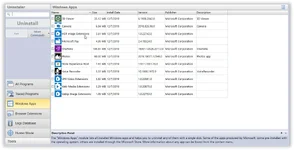
Revon Uninstaller.webp

Next up, install all your applications and configure them to your liking. Use a good system cleaner such as BleachBit or Privazer Pro to clean up your OS. I take for granted you are running an SSD. That means you don't need a defragmentation tool.

Just put on Windows Explorer, right-click C: Drive -> Properties -> Tools -> Optimize -> Optimize Drive C:

Finally back up your OS with a system image backup on your external drive with the software of your choice. Don't forget the validation process.

Doing a fresh install takes up more time. But you only need to do it just once and it will serve you for years to come.

If you need more help, just holler.
 
Driver backups are a separate issue from app settings, and Windows can usually fetch current drivers after installation. I wouldn’t disable Windows Security or avoid updates just to preserve preferences; that can leave the system exposed. For apps without export or sync, note their names and selectively copy relevant folders from %AppData%, %LocalAppData%, or Documents, then restore them after reinstalling each app. Keep license keys and recovery codes separately, and don’t copy all of AppData back wholesale.
 
One extra precaution would be to save a full image of the old drive before wiping it, alongside the individual settings exports.

You don’t have to restore the whole system afterwards. With backup software that supports mounting images, you can browse the old files later if you discover you missed an app profile, template, preset, or save file.

Check that you can actually open the image before reinstalling, and keep it on a separate drive. Some saved credentials may be tied to the old Windows account, so copying their files back won’t necessarily make them usable.
 

Ready to join the discussion?

Create your account to reply, get notifications and build your profile.